Ringtone Maker:create ringtone
- 4.7
- Rating
- 100.00M
- Installs
- Free
- Price

 Analysis by App-foxy
I installed Ringtone Maker from Big Bang Inc. with a simple goal: turn an ordinary audio file into something I would actually want to hear when someone calls. That sounds like a small task, but the difference between a useful ringtone and an annoying one often comes down to choosing the right part of a song, trimming it cleanly, and getting the finished file into the phone’s ringtone settings without losing track of it.
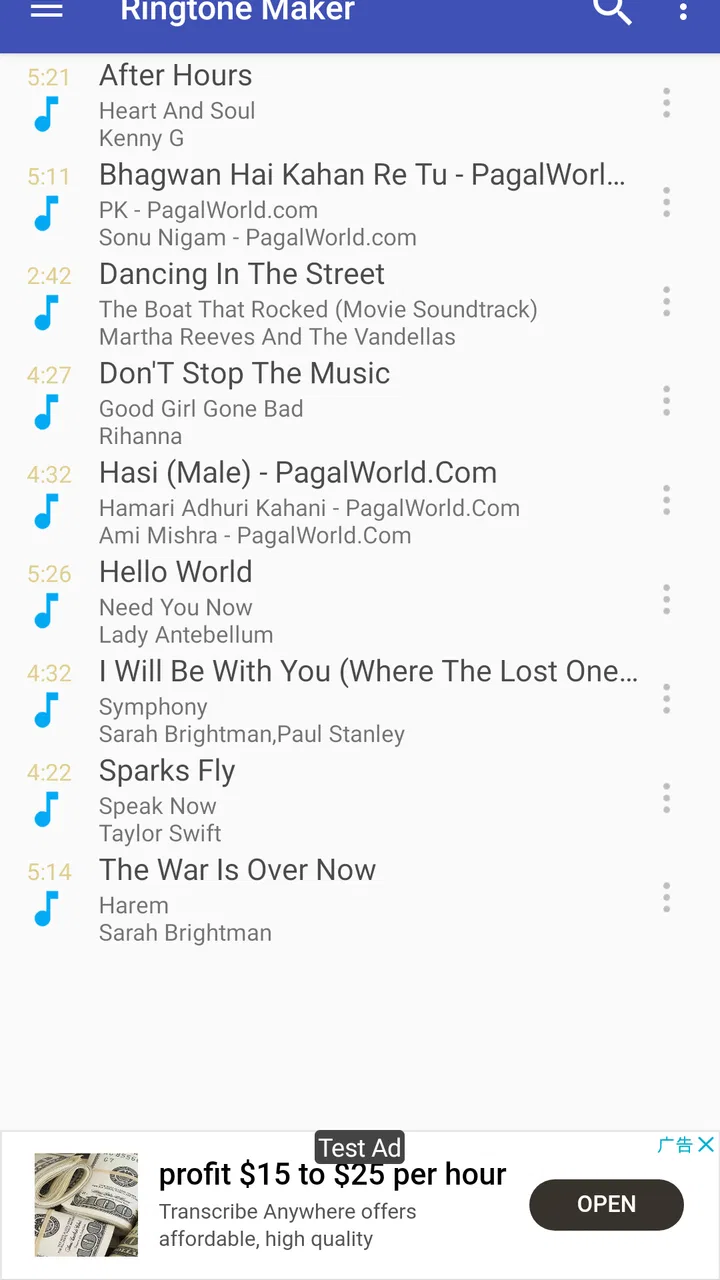
This free personalization app focuses on that practical job rather than trying to become a full music editor. You can work from music already available on your device or start with a recording, then shape the audio into a ringtone. In my experience, its appeal is strongest when I already know which sound I want and need a direct way to prepare it. It is less compelling if I am looking for a complete audio-production suite, a large sound library, or elaborate effects.
From an ordinary audio file to a usable ringtone
I find the most useful way to judge a ringtone edit is to test it in the setting where it will actually be heard, not just while previewing it in a quiet room. A short, clear opening can matter more than a perfect musical cut, especially if calls come in while I’m away from the phone. That practical test also leads naturally to the next question: how the workflow holds up when I’m making several clips or working with less-than-ideal audio.
You May Also Like

 AccuWeather: Weather Radar
AccuWeather Review: A Quick, Clear Forecast for Everyday Decisions
For everyday plans, the best forecast is the one you can understand quickly. AccuWeather makes rain timing, radar, and local conditions easy to act on, with a few trade-offs.

 Hill Climb Racing
Why Hill Climb Racing Still Turns Crashes Into One More Run
A tiny car, a bumpy hill and one more upgrade: Hill Climb Racing keeps resurfacing because its simple chaos makes every near-miss feel personal.

 AliExpress - Shopping App
AliExpress Makes Global Shopping Feel Personal, but Shoppers Bear the Risk
AliExpress turns a global marketplace into a pocket-sized discovery engine. Its reach is useful, its shopping loop compelling, and its trade-offs easy to miss.

 Lords Mobile: Kingdom Wars
Lords Mobile Is a Kingdom-Building Routine, Not a Quick Match
A case-by-case verdict on the building, battles, device demands, and social commitments that make Lords Mobile rewarding for some players and exhausting for others.

 PDF Scanner app - TapScanner
TapScanner Makes Paperwork Easier to Capture, Check, and Share
TapScanner makes scanning with a phone feel less like a rescue operation and more like a dependable step in getting work done. Its capture tools are useful, though not flawless.

 Block Blast!
Block Blast! Shows How Much a Puzzle Game Can Leave Out
A quiet grid game shows why puzzle players increasingly value instant clarity, repeatable skill and low-pressure play—and where the genre still needs to catch up.
More From Our News Desk
View All News


Starting with the right source
The best workflow begins before opening the editor. I first decide what the sound needs to do in real life. A ringtone has to be recognizable quickly, loud enough to notice, and short enough that hearing it repeatedly does not become tiring. A gentle intro may sound pleasant through headphones but disappear in a busy room, while a dramatic chorus may be memorable yet too long for everyday calls.
That is where this app’s straightforward approach makes sense. Instead of searching through complicated menus, I can begin with music files stored on the phone or use a recording as the source. The recording option is particularly useful for a spoken reminder, a family member’s greeting, a pet sound, or another personal clip that is not part of a music library.
I would still prepare the source carefully. If the audio file contains a long silence, I avoid treating the first quiet section as the beginning of the ringtone. If the most recognizable moment arrives late, I look for that section rather than accepting the first available portion. This small decision has more impact on the final result than decorative editing tools would.
Finding the useful section
Once I select a source, the central task is choosing the start and end points. I listen for a section that makes sense almost immediately. For a song, that might be a distinctive vocal phrase or instrumental hook. For a recording, it could be the clearest sentence rather than the entire conversation.
My practical tip is to leave a tiny amount of breathing room around the important sound instead of cutting directly into its first syllable or note. A cut that is technically shorter can feel abrupt when the phone begins ringing. On the other hand, too much empty space delays recognition and makes the ringtone seem quieter than it really is.
This is also where I notice the trade-off between convenience and control. The app is designed to make trimming approachable, so it is suitable for a quick personal edit. Someone who needs detailed waveform restoration, multitrack work, precise fades, or extensive noise treatment will probably feel restricted and should use a dedicated audio editor first.
Using a recording instead of a song
The recording workflow gives the app a more personal use than its name might suggest. I can create a short sound directly rather than relying on a downloaded track. That makes sense for a custom alert, a spoken name, or a private joke shared among family members.
For the cleanest result, I would record in a quiet place and keep the phone at a consistent distance from the speaker. A recording made next to traffic or a loud fan may still be usable, but unwanted background noise becomes much more noticeable when the clip repeats as a call alert. I would also replay the finished segment through the phone’s speaker, not only headphones, because the speaker changes how voices and bass are perceived.
The handoff from editing to the phone
Editing is only half of the experience. The important handoff is turning the selected audio into something the phone can use as a ringtone. I treat the save or assignment step as part of the workflow rather than assuming that a successful edit automatically changes every call setting.
After creating the clip, I check the phone’s ringtone selection and confirm that the new sound is available. If I want it for a particular person, I then look in the contact settings and choose it there when the device allows that arrangement. This extra check prevents a common misunderstanding: producing a ringtone file and making it the active ringtone are related steps, but they are not always the same action.
The same habit helps when I create several versions. I use clear names based on the purpose, such as a family contact or a work call, instead of leaving multiple nearly identical clips with vague labels. That makes the later handoff much easier, especially when the phone’s sound picker displays files in a simple list.
What the finished result feels like
When the source is chosen well, the result is pleasantly direct. I can take a familiar piece of music and turn it into a sound that starts at the part I actually want to hear. I can also make a short recording into a personal alert without opening a desktop program or learning a complex timeline.
A realistic example is a busy weekday morning. I might choose a recognizable section of a song for general calls, then create a separate spoken clip for an important family contact. The first edit gives me an easy-to-identify alert, while the second lets me know who may be calling before I look at the screen. The useful part is not just the trimming; it is the way the app connects a source file to a specific everyday purpose.
For that kind of task, the free price is a major advantage. I can experiment with a few clips without committing to a paid audio editor. The app is also marked for Everyone, which fits its simple personalization purpose and makes it approachable for people who do not want technical audio terminology.
Where the workflow can break
The first weak point is source availability. The app can work with music files or a recording, but that does not mean every piece of music I can hear on a phone is automatically available as an editable file. Streaming services, protected media, and audio hidden inside another application are not the same as ordinary local files. If my goal depends on one of those sources, I may need a different route before this editor can help.
The second weak point is sound quality. Trimming cannot repair a recording that is already distorted, extremely quiet, or full of background noise. I can select a better section, but I should not expect the app to transform a poor source into studio-quality audio. For a polished result, I would clean the audio elsewhere first and use this app for the final selection.
The third issue is the phone itself. The exact handoff into ringtone settings can vary with the device and its software. A clip may be saved correctly yet still require a manual selection in system settings. If I am troubleshooting, I check the saved audio, open the phone’s sound controls, and look for the file there before recreating the edit.
There is also a creative limitation. The app’s strength is making a ringtone from a source, not building a complete arrangement. If I want layered effects, advanced volume shaping, several tracks, or detailed restoration, a more specialized editor is the better choice. This is not a criticism of the basic workflow; it is simply important to choose the right tool for the job.
Who will get the most from it
I recommend it to anyone who wants a personal ringtone without a long setup process. It suits people who already have a song or recording on their phone and mainly need to select the useful portion. It is also a good fit for users who prefer familiar audio over browsing a catalog of premade sounds.
It works especially well for small, repeatable tasks: preparing a song hook, cutting a short spoken message, or making separate sounds for different types of calls. The workflow is easy to understand because it follows a natural order: choose the source, select the section, save it, then verify the phone’s assignment.
I would skip it if I need professional audio production, automatic access to streaming tracks, or extensive repair tools. I would also look elsewhere if I want a broad collection of ready-made ringtones rather than creating my own. In those situations, a full audio editor or a ringtone library may save time.
Everyday usability and long-term appeal
The app has been available since December 2, 2010, and its continued popularity is easy to understand. It has reached over 100 million installs, with an average rating of 4.6 from around 666 thousand ratings and about 35 thousand written reviews. Those figures do not replace personal testing, but they do reflect that the basic problem it solves is common and that many users find the approach useful.
What I appreciate most is that the app does not force me to treat a simple ringtone as a major project. I can make one clip, test it, and move on. The main discipline is choosing a strong starting point and checking the final sound on the actual phone. That keeps the workflow efficient while avoiding the disappointment of a ringtone that begins too quietly or ends before the recognizable part.
My final view is positive, with a clear boundary. Ringtone Maker is best understood as a focused shortcut from personal audio to a phone-ready ringtone, not as a replacement for a full recording studio. For a free personalization app, it handles the central journey well: it accepts music or a recording, helps me isolate the part I want, and gives that sound a practical place in daily phone use.
If your starting condition is a local audio file or a sound you can record, I think it is worth trying. Keep the source clean, choose a section that becomes recognizable quickly, leave a little space at the edges, and verify the result in the phone’s own ringtone settings. With those expectations, Ringtone Maker is a useful, uncomplicated choice for turning ordinary audio into something more personal.
FAQs for Ringtone Maker:create ringtone
01What features does Ringtone Maker: Create Ringtone offer?
Ringtone Maker: Create Ringtone provides a variety of features for personalizing your phone's sound alerts. You can trim, cut, and merge audio files to create custom ringtones. The app supports various audio formats, including MP3 and WAV, and offers a user-friendly interface for easy navigation and editing.
02Is Ringtone Maker: Create Ringtone free to use?
Yes, Ringtone Maker: Create Ringtone is free to download and use. However, it may offer in-app purchases or ads to enhance user experience. These can include additional features or an ad-free version. Be sure to check the app's description for detailed information on any costs involved.
03How can I set a ringtone created with the app as my phone's ringtone?
After creating a ringtone, Ringtone Maker: Create Ringtone allows you to save the file directly to your phone. You can then go to your device's settings, navigate to Sounds and Vibration, and select your custom ringtone from the list of available options. Some devices may require additional steps, so consult your phone's manual if needed.
04Is Ringtone Maker: Create Ringtone compatible with both Android and iOS?
Ringtone Maker: Create Ringtone is available for both Android and iOS devices. The app is designed to work seamlessly across both platforms, although the features or interface may slightly vary. Ensure your device meets the necessary requirements for optimal performance by checking the app details in the respective app store.
05Are there any privacy concerns when using Ringtone Maker: Create Ringtone?
Ringtone Maker: Create Ringtone requires access to your media files to function properly. While this is standard for apps of this nature, ensure you review the privacy policy and permissions requested during installation. The app should not require access to personal data beyond what is necessary for creating and saving ringtones.
Pros
- Intuitive interface for easy ringtone creation.
- Wide range of audio file format support.
- Quick trimming and editing tools.
- High-quality output with no loss of sound.
- No internet connection required for use.
Cons
- Ads can be intrusive during editing.
- Limited advanced editing features.
- Free version has restricted options.
- Occasional crashes on older devices.
- In-app purchases for full functionality.

Ringtone Maker:create ringtone
Gallery